
Wii Console Manual Troubleshooting: A Comprehensive Guide
Navigating the world of Wii troubleshooting can be daunting, yet essential for continued enjoyment.
Common issues range from power failures and black screens to disc read errors and remote synchronization problems.
Resetting the AC adapter often resolves power issues, while incorrect clock settings can trigger error code FORE000006.
HDMI cable problems are also frequently encountered.
This guide provides a detailed walkthrough of common Wii problems, offering solutions and resources for a seamless gaming experience.
Remember to check disc cleanliness and consider software updates.
Welcome to the world of Wii troubleshooting! This section serves as your initial guide to resolving common issues with your Nintendo Wii console. The Wii, while a beloved gaming system, is not immune to technical hiccups. Understanding the potential problems and how to address them is key to maintaining a fun and uninterrupted gaming experience.
Many issues stem from simple causes, such as a disconnected AC adapter or incorrect system settings. However, more complex problems, like disc read errors or remote synchronization failures, may require a more methodical approach. This guide aims to equip you with the knowledge to diagnose and fix a wide range of Wii issues, starting with the most frequent occurrences.
Before diving into specific solutions, it’s important to remember a few general troubleshooting principles. Always start with the simplest fixes first – a power cycle or cable check can often resolve the problem. Ensure your console is properly ventilated to prevent overheating, and keep the sensor bar clean for accurate motion detection. Regularly updating your Wii’s software is also crucial for optimal performance and stability.
This introduction will set the stage for a comprehensive exploration of Wii troubleshooting, empowering you to become your own tech support and keep your gaming adventures alive!
Common Wii Problems Overview
The Nintendo Wii, despite its robust design, is prone to several recurring issues. Power problems are frequently reported, often manifesting as a complete lack of power or intermittent shutdowns. These are often linked to the AC adapter, making a reset a primary troubleshooting step.
Black screen issues are another common complaint, sometimes indicating a problem with the console’s internal components or the connection to the television. Disc read errors also plague many users, potentially caused by scratched discs or a malfunctioning laser lens. Synchronization problems with the Wii Remote and Nunchuk are also prevalent, hindering gameplay.
Furthermore, users often encounter slow download speeds and connection errors when accessing the Wii Shop Channel or playing online games. Button responsiveness issues can disrupt gameplay, and HDMI cable malfunctions can lead to display problems; Error codes, such as FORE000006, signal specific system errors requiring targeted solutions.
Understanding these common problems is the first step towards effective troubleshooting. Each issue has a range of potential causes and solutions, which will be explored in detail throughout this guide, ensuring a smooth and enjoyable gaming experience.
Power Issues and AC Adapter Reset
Power problems are among the most frequently encountered issues with the Nintendo Wii. Symptoms range from the console failing to power on at all, to intermittent shutdowns during gameplay. A primary suspect in these scenarios is the AC adapter, the Wii’s external power supply.
Before delving into more complex troubleshooting, a simple AC adapter reset is often the most effective first step. This involves unplugging the adapter from both the Wii console and the wall outlet. Allowing it to remain disconnected for a minimum of at least one to two hours is crucial. This allows any residual electrical charge to dissipate.
After the waiting period, reconnect the AC adapter to the wall outlet first, then to the Wii console. Attempt to power on the system. If this resolves the issue, the problem was likely a temporary power surge or internal adapter fault. However, if the problem persists, the AC adapter itself may be defective and require replacement.
It’s important to note that using a non-official Nintendo AC adapter can also cause power issues. Always use the original adapter or a certified replacement to ensure compatibility and prevent damage to the console.
No Power: Diagnosing the Problem
When your Wii refuses to power on, a systematic approach to diagnosis is essential. Begin by verifying the power outlet itself. Test it with another device to confirm it’s functioning correctly. If the outlet is fine, the issue likely lies with the Wii or its AC adapter.
Visually inspect the AC adapter and the power cable for any signs of physical damage, such as frayed wires or bent connectors. A damaged cable can prevent power from reaching the console. Next, carefully check the DC jack on the Wii itself for any visible damage or debris.
If the adapter’s indicator light isn’t illuminated, it strongly suggests a faulty adapter. Try a known working AC adapter, if available, to isolate the problem. If the Wii still doesn’t power on with a confirmed good adapter, the issue may be internal, potentially involving the console’s power supply board.
Internal component failure requires professional repair. Attempting to open and repair the Wii yourself can void any remaining warranty and potentially cause further damage. Consider seeking assistance from a qualified electronics technician.
Black Screen Issues and Solutions
Encountering a black screen on your Wii can be frustrating, but several troubleshooting steps can often resolve the issue. First, ensure the TV is on the correct input channel corresponding to the Wii’s connection (AV, Component, or HDMI). A simple input mismatch is a common cause.
Next, thoroughly check all cable connections – AV cables (red, white, yellow), Component cables, or the HDMI cable – ensuring they are securely plugged into both the Wii and the TV. Try disconnecting and reconnecting each cable to ensure a solid connection.
If using HDMI, test with a different HDMI cable, as faulty cables can cause signal loss. Also, experiment with different HDMI ports on your TV. If using component video cables with an HDTV, navigate to the Wii’s settings to ensure proper configuration.
As a last resort before considering internal issues, attempt a hard reset by unplugging the Wii’s AC adapter from both the console and the wall outlet for at least a minute, then reconnecting and powering it on. If the problem persists, professional repair may be necessary.
Disc Read Errors: Causes and Fixes
Disc read errors on the Wii can stem from several sources, hindering your gaming experience. The most common culprit is a dirty or scratched disc. Carefully inspect the disc’s surface for any visible damage, fingerprints, or dust. Gently clean the disc with a soft, lint-free cloth, wiping from the center outwards in a straight line – avoid circular motions.
If cleaning doesn’t resolve the issue, the Wii’s laser lens might be dirty or misaligned. While cleaning the lens yourself is risky, a console reset by unplugging the power adapter can sometimes help. Ensure the console is off before disconnecting the power.
Another potential cause is disc compatibility. The Wii is generally compatible with single-layer DVDs, but some discs may have issues. Try testing with multiple, known-good discs to determine if the problem is disc-specific or console-related.
Persistent errors may indicate a failing laser assembly, requiring professional repair. Avoid attempting to disassemble the Wii yourself, as this could void any warranty and potentially cause further damage. Consider seeking assistance from a qualified technician.
Wii Remote Synchronization Problems
Wii Remote synchronization issues are a frequent frustration for players. The primary cause is often interference or a lack of a clear signal between the remote and the console. Ensure there are no obstructions between the Wii Remote and the Sensor Bar, and minimize sources of interference like fluorescent lights or other wireless devices.
To resynchronize, press the red SYNC button on both the Wii console and the Wii Remote. The blue LEDs on the remote will flash rapidly during the synchronization process. Once synchronized, the blue LEDs will remain lit steadily.
If synchronization fails repeatedly, try replacing the batteries in the Wii Remote. Low battery power can weaken the signal. Also, ensure the Sensor Bar is securely connected to the Wii console and positioned correctly – ideally directly above or below the television screen.
In some cases, a faulty Wii Remote may be the issue. Test with another known-working remote to isolate the problem. If the issue persists, consider contacting Nintendo support or seeking professional repair.
Nunchuk Connectivity Issues
Nunchuk connectivity problems often manifest as the Nunchuk not being recognized by the Wii console, or intermittent disconnections during gameplay. These issues typically stem from a weak connection or interference affecting the signal between the Nunchuk and the Wii Remote.
First, ensure the Nunchuk is firmly plugged into the Wii Remote’s connector. A loose connection is the most common culprit. Try unplugging and re-plugging the Nunchuk several times to ensure a secure fit. Also, verify the Wii Remote itself is properly synchronized with the console, as the Nunchuk relies on the Remote for communication.
Similar to Wii Remote issues, interference from other wireless devices or fluorescent lights can disrupt the signal. Minimize potential sources of interference in the play area. If multiple Wii Remotes and Nunchuks are in use, try reducing the number to see if it resolves the problem.
Testing with a different Nunchuk can help determine if the issue lies with the Nunchuk itself or the Wii Remote. If the problem persists with multiple Nunchuks, the Wii Remote may be faulty.
Error Codes: Understanding and Resolving FORE000006
The dreaded error code FORE000006 on the Wii console almost universally indicates an incorrect system clock setting. This error prevents access to WiiConnect24 features, online gameplay, and the Virtual Console, effectively limiting the console’s functionality.
Resolving this issue requires resetting the Wii’s internal clock. Access the System Settings through the Wii Menu, then navigate to System Settings and select “Date and Time.” Disable “Synchronize Clock via Internet” – this is crucial. Manually set the correct date and time, ensuring accuracy.
If the error persists after manually setting the date and time, completely power cycle the Wii. Unplug the console from the power outlet for at least five minutes before plugging it back in and attempting to synchronize the clock again.
In rare cases, a corrupted system memory may contribute to this error. While less common, a full system reset (factory reset) might be necessary as a last resort, but be aware this will erase all saved data. Always back up important data before performing a factory reset.
Slow Downloads and Connection Errors
Experiencing sluggish download speeds or frequent connection errors on your Wii can be incredibly frustrating, hindering access to Virtual Console titles, WiiWare, and online multiplayer. Several factors can contribute to these issues, ranging from network congestion to console settings.
First, verify your internet connection. Ensure your broadband connection is stable and functioning correctly with other devices. Check the Wii’s internet settings – navigate to Wii Settings, then Internet. Confirm the correct SSID (network name) is selected and the password is accurate.
Consider the distance between your Wii and the wireless router. Excessive distance or obstructions (walls, appliances) can weaken the signal. Try moving the Wii closer to the router or minimizing interference. A wired connection via Ethernet cable offers the most stable and fastest speeds.
Also, clear the Wii’s cache. In the Internet Settings, select “Level 1 Connection Test” and then “Reset Connection.” This can resolve temporary glitches. Finally, ensure your Wii’s system software is up-to-date, as updates often include network performance improvements.
Button Responsiveness Issues
Encountering unresponsive buttons on your Wii Remote or Nunchuk can severely impact gameplay, leading to missed actions and frustrating experiences. Several potential causes can contribute to this issue, ranging from simple interference to more complex hardware problems.
Initially, check the batteries in your Wii Remote and Nunchuk. Low battery power is a common culprit for erratic button behavior. Replace them with fresh batteries and test again. Ensure there’s no physical obstruction – dirt, debris, or sticky residue – interfering with the buttons.
Wireless interference can also play a role. Other electronic devices operating on the 2.4 GHz frequency (microwaves, Bluetooth devices) can disrupt the signal between the Wii Remote and the console. Try moving these devices away from the Wii.
If the problem persists, attempt to resynchronize the Wii Remote. Press the red SYNC button on both the Wii console and the Wii Remote. If issues continue, a deeper cleaning of the Wii Remote’s internal components might be necessary, or the remote may require repair or replacement.
HDMI Cable Problems and Alternatives
Utilizing an HDMI connection for your Wii aims to deliver a sharper, more vibrant picture, but issues can arise. A faulty HDMI cable is a frequent cause of display problems, manifesting as a blank screen, distorted visuals, or no signal at all. Begin by verifying the HDMI cable is securely connected to both the Wii and your television.
Try a different HDMI cable to rule out a cable defect. If a replacement cable resolves the issue, the original cable was likely the problem. Ensure your television is set to the correct HDMI input channel corresponding to the port the Wii is connected to.
If HDMI continues to be problematic, consider reverting to alternative connection methods. The Wii supports composite (red, white, yellow cables) and component (red, green, blue cables) video outputs. These older connections, while offering lower resolution, can provide a stable picture when HDMI fails.
Remember that some HDTVs may require specific settings adjustments to properly display the Wii’s output via HDMI. Consult your television’s manual for guidance on compatible settings.
Resetting the Wii Console
When encountering persistent issues with your Wii, a full console reset is often a beneficial troubleshooting step. This process doesn’t erase your save data or channels, but it clears temporary files and resets system settings to their defaults, potentially resolving software glitches.
To perform a reset, completely power down the Wii. Disconnect the power adapter from both the console and the wall outlet. Crucially, allow the console to remain unplugged for a minimum of one to two hours. This complete power cycle allows any residual electricity to dissipate, ensuring a thorough reset.
After the waiting period, reconnect the power adapter and turn on the Wii. The system will then undergo its normal startup sequence. Test if the original problem has been resolved. If issues persist, consider further troubleshooting steps.
Note that a reset is a non-destructive process, meaning your game saves and downloaded content remain intact. However, it’s always prudent to back up important data whenever possible as a precautionary measure.
Cleaning the Wii Sensor Bar
The Wii Sensor Bar is crucial for accurate motion detection, and a dirty sensor bar can lead to tracking issues and frustrating gameplay. Dust, fingerprints, and other debris can obstruct the infrared light emitted by the bar, hindering the Wii Remote’s ability to register movements correctly.
To clean the sensor bar, begin by disconnecting it from the Wii console. Use a soft, dry, lint-free cloth to gently wipe the entire surface of the bar. Avoid using any liquids, abrasive cleaners, or harsh chemicals, as these can damage the sensitive components.
For stubborn smudges, lightly dampen the cloth with distilled water, ensuring it’s not dripping wet. Wipe the sensor bar again, then immediately dry it with a separate, dry cloth. Ensure the bar is completely dry before reconnecting it to the Wii.
Regular cleaning – even a quick wipe-down every few weeks – can prevent buildup and maintain optimal performance. A clean sensor bar contributes significantly to a smooth and responsive Wii gaming experience.
Internal Component Issues (Advanced)
Addressing internal component failures within the Wii console requires advanced technical skills and should only be attempted by experienced individuals. Opening the console voids any remaining warranty and carries inherent risks of further damage if not performed correctly.
Common internal issues include failing capacitors on the motherboard, which can cause power instability or complete system failure. Identifying and replacing these requires soldering expertise and knowledge of electronic components. The laser lens assembly can also degrade over time, leading to disc read errors that aren’t resolved by cleaning.
If you suspect an internal component failure, carefully inspect the motherboard for visibly damaged capacitors – look for bulging or leaking. A multimeter can be used to test for continuity and voltage levels. Replacing the laser lens is a more complex procedure, requiring disassembly of the disc drive.
Due to the complexity and risks involved, seeking professional repair services is often the most prudent course of action for internal component issues. Attempting repairs without proper knowledge can exacerbate the problem and potentially render the console irreparable.
Using the Wii System Check
The Wii System Check is a built-in diagnostic tool designed to identify potential hardware problems within your console. Accessing this feature involves a specific button sequence initiated during the console’s startup process. It’s a valuable first step when encountering unexplained errors or malfunctions.
To initiate the System Check, ensure the Wii is completely powered off. Then, while holding the Power and Reset buttons simultaneously, press the Power button again. Continue holding Power and Reset until the Wii System Check screen appears. This process tests various hardware components, including the CPU, memory, and graphics processor.
The System Check will run a series of tests and display results on the screen. A “Pass” result indicates that the tested component is functioning correctly. A “Fail” result suggests a potential hardware issue requiring further investigation or professional repair. Note any specific error messages displayed during the check.
While the System Check isn’t a comprehensive diagnostic tool, it can quickly pinpoint major hardware failures. If the check fails repeatedly, it’s advisable to consult a qualified repair technician for a more thorough assessment and potential repair options.
Software Updates and Troubleshooting
Maintaining up-to-date system software is crucial for optimal Wii performance and stability. Nintendo regularly releases updates addressing bugs, improving compatibility, and enhancing security. These updates are typically delivered via the WiiConnect24 service, requiring a stable internet connection.
To check for updates, navigate to the Wii Settings menu, then System Update. The console will automatically search for available updates and prompt you to download and install them. Ensure sufficient free space on your Wii’s internal memory or an SD card before initiating the update process.
Software glitches can sometimes cause various issues, such as game crashes or system freezes. If you encounter such problems, try restarting the Wii. If the issue persists, consider performing a system reset, which restores the console to its factory settings – remember to back up any important data first!
Troubleshooting update failures often involves checking your internet connection, ensuring sufficient storage space, and verifying the power supply’s stability. If updates repeatedly fail, consult Nintendo’s support website for specific error codes and troubleshooting steps.
Dolphin Emulator Troubleshooting (PC)
Dolphin is a popular Wii and GameCube emulator for PC, allowing you to play your favorite games on a computer. However, emulation can sometimes be tricky, requiring troubleshooting for optimal performance. Common issues include graphical glitches, slow framerates, and controller incompatibility.
Firstly, ensure your PC meets the minimum system requirements for Dolphin. A powerful processor and dedicated graphics card are essential for smooth gameplay. Experiment with different graphics settings within Dolphin – DX9 and DX11 renderers offer varying performance levels. Adjusting resolution and texture filtering can also significantly impact framerates.
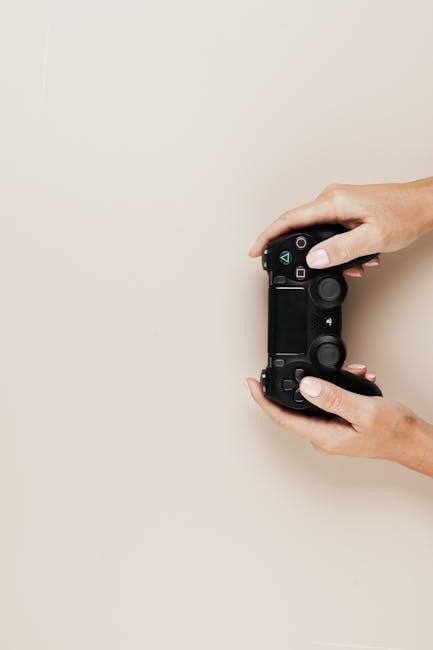
Controller configuration is another frequent hurdle. Dolphin supports various input methods, including Xbox 360 controllers, PlayStation controllers, and keyboard/mouse. Properly mapping the controls within Dolphin’s settings is crucial for a seamless experience.
If you encounter crashes or glitches, try updating your graphics drivers and Dolphin to the latest versions. Consult the Dolphin community forums for specific game compatibility reports and troubleshooting tips. A clean Dolphin installation can also resolve persistent issues.
Resources for Further Wii Support
Beyond this guide, a wealth of resources exists for continued Wii support and troubleshooting. Nintendo’s official support website remains a valuable starting point, offering FAQs, downloadable manuals, and contact information for customer service. However, response times can vary.
Online forums and communities dedicated to the Wii are incredibly helpful. Websites like Reddit’s r/Wii and GameFAQs host active discussions where users share solutions to common problems and offer advice. These platforms often provide more immediate assistance than official channels.
YouTube is a treasure trove of Wii repair and troubleshooting videos. Channels like Phone Repair Guru offer detailed tutorials on fixing hardware issues, such as black screens and power failures. Visual guides can be particularly useful for complex repairs.
Dolphin’s official website and forums are essential for emulator-specific support. The community actively maintains compatibility lists and provides troubleshooting assistance for various games and configurations. Remember to always exercise caution when downloading software from unofficial sources.