
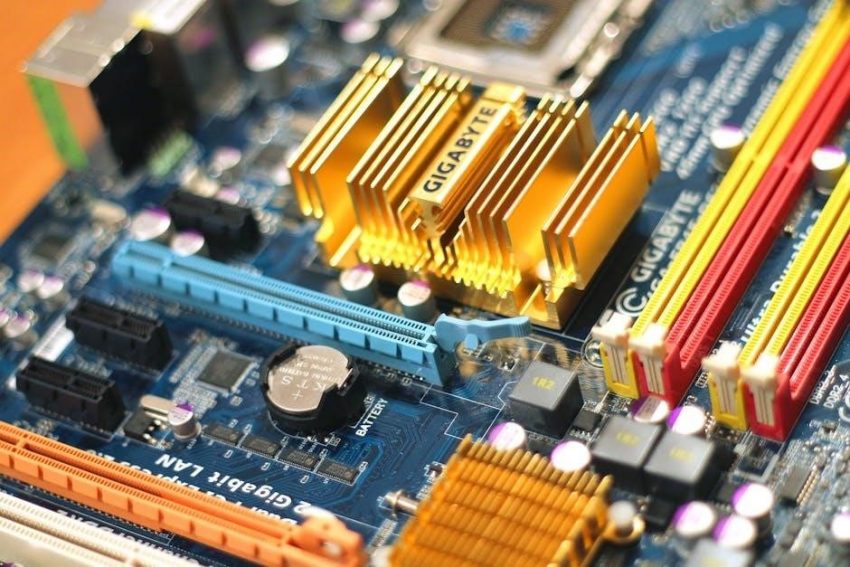
Motherboards are essential computer components, acting as the central hub. They distribute power and enable communication between all computer hardware parts.
What is a Computer?
A computer is fundamentally an electronic device designed to accept raw data as input, meticulously process that data according to a set of instructions, and then deliver meaningful output. This process transforms information, enabling a vast range of tasks.
Essentially, all the gadgets we interact with on a computer – from the display screen to the keyboard and mouse – are either directly or indirectly connected to this core functionality. These components rely on the motherboard for power and communication. Understanding this basic definition is crucial before delving into the intricacies of motherboard components and their specific roles within the system. The motherboard itself is the foundation upon which the entire computer operates.
Defining the Motherboard
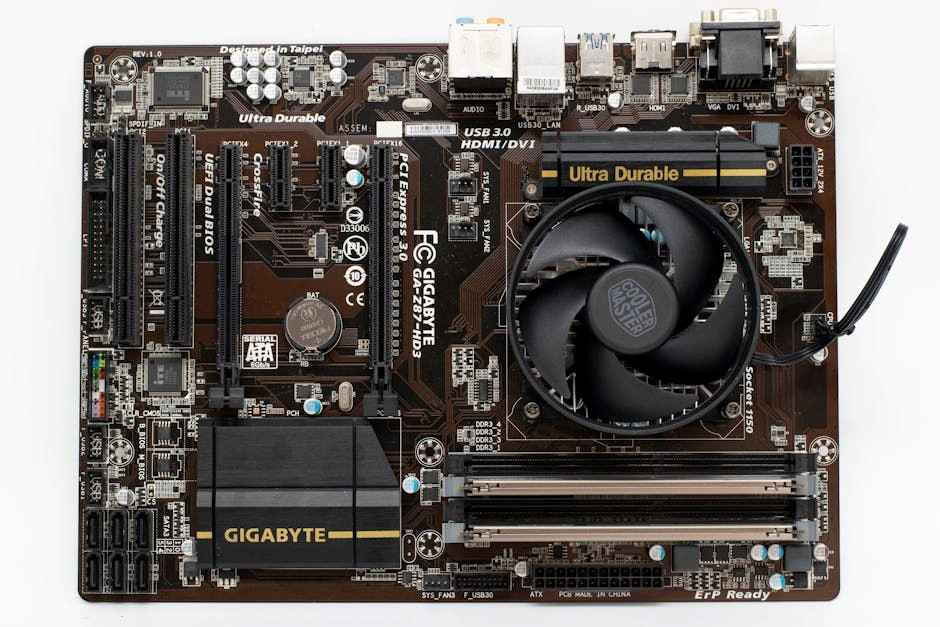
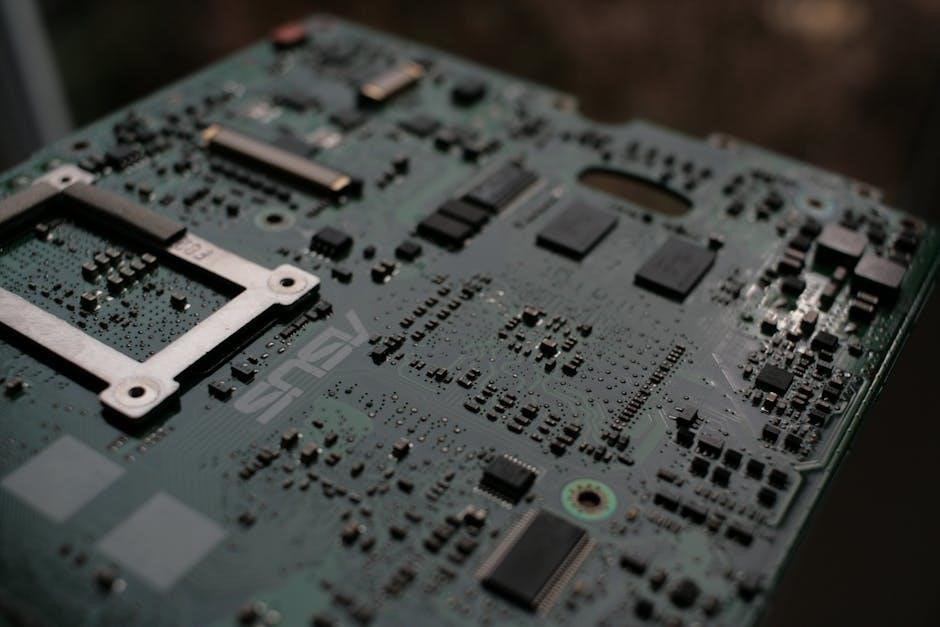
The motherboard, often described as the main circuit board, is a crucial component within a computer. It’s typically a printed circuit board located at the base or back of the computer case, providing the foundational structure for all other parts. Its primary function is to allocate power and facilitate communication between the CPU, RAM, and all other connected hardware.
Constructed from a firm, non-conductive material, the motherboard features intricate pathways – thin layers of copper or aluminum called traces – printed onto its surface. These traces act as the highways for data transfer. Identifying these different motherboard parts and understanding their functions is key to comprehending how a computer operates as a cohesive unit.
The Motherboard as a Central Hub
The motherboard functions as the central nervous system of a computer, orchestrating communication between all connected components. It’s the core platform where the CPU, memory (RAM), storage devices, and expansion cards interact. Without the motherboard, these parts couldn’t function together as a unified system.
It provides the necessary connections – ports and slots – for peripherals like the monitor, keyboard, mouse, and network connections. Essentially, every piece of hardware relies on the motherboard to receive power and transmit data. Understanding this central role highlights why selecting the right motherboard is vital for overall system performance and compatibility.
Motherboard Form Factors
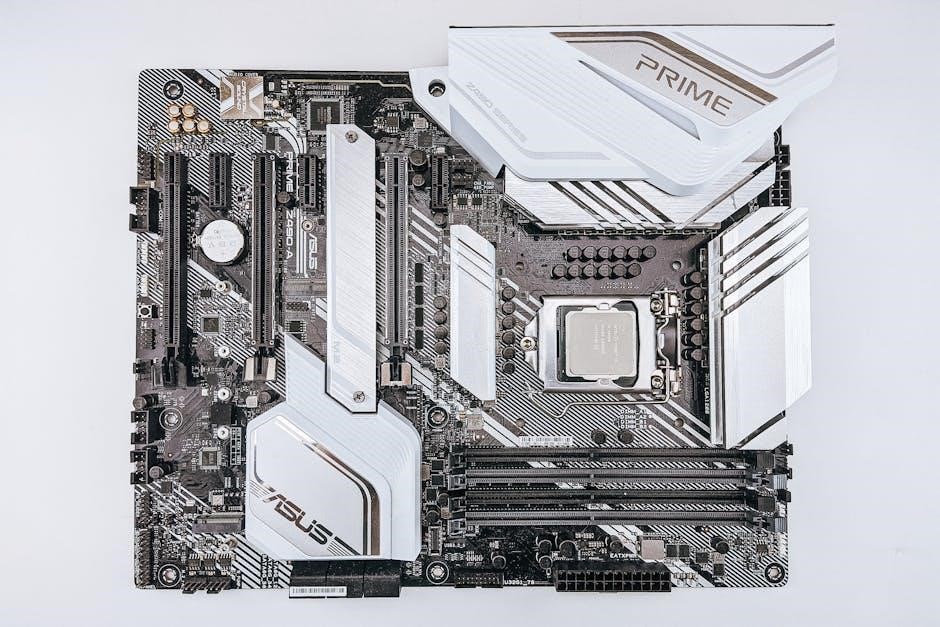
Motherboard form factors—like ATX, Micro-ATX, and Mini-ITX—define their size and layout, impacting case compatibility and expansion slot availability.
ATX Motherboards
ATX (Advanced Technology Extended) is a standard form factor, widely recognized for its balance of features and expandability. Typically measuring 12 x 9.6 inches, ATX motherboards offer ample space for numerous expansion slots – crucial for graphics cards, sound cards, and other peripherals.
These boards generally include multiple PCI Express slots, SATA ports for storage, and sufficient RAM slots to accommodate substantial memory upgrades. The layout prioritizes ease of installation and airflow, contributing to better system cooling. ATX motherboards are a popular choice for mainstream desktops and gaming rigs, providing a solid foundation for high-performance computing. Their widespread adoption ensures broad compatibility with cases and components.
Micro-ATX Motherboards
Micro-ATX motherboards represent a compromise between the full-sized ATX and the smaller Mini-ITX form factors. Measuring approximately 9.6 x 9.6 inches, they offer a reduced footprint, making them suitable for compact builds without sacrificing too much expandability. While they typically feature fewer expansion slots than ATX boards – often one or two PCI Express slots – they still accommodate essential components like a dedicated graphics card.
Micro-ATX boards generally support a comparable number of SATA ports and RAM slots as their larger counterparts. They are a cost-effective option for users seeking a balance between size, features, and price, commonly found in home theater PCs and budget gaming systems. Their smaller size can sometimes present challenges with cooling, requiring careful component selection.
Mini-ITX Motherboards
Mini-ITX motherboards are the smallest commonly available form factor, typically measuring just 6.7 x 6.7 inches. Designed for extremely compact builds, they prioritize minimal size over extensive expandability. These boards usually support only a single PCI Express slot, limiting graphics card options, and often have a maximum of two RAM slots. Despite their small size, Mini-ITX boards offer all the essential functionality of a full-sized motherboard.
They are popular choices for small form factor gaming PCs, home theater PCs (HTPCs), and embedded systems. Building with Mini-ITX requires careful consideration of component compatibility and cooling solutions due to the limited space. While generally more expensive than larger form factors, they provide a unique building experience for enthusiasts seeking a truly compact system.
Core Components & Their Functions
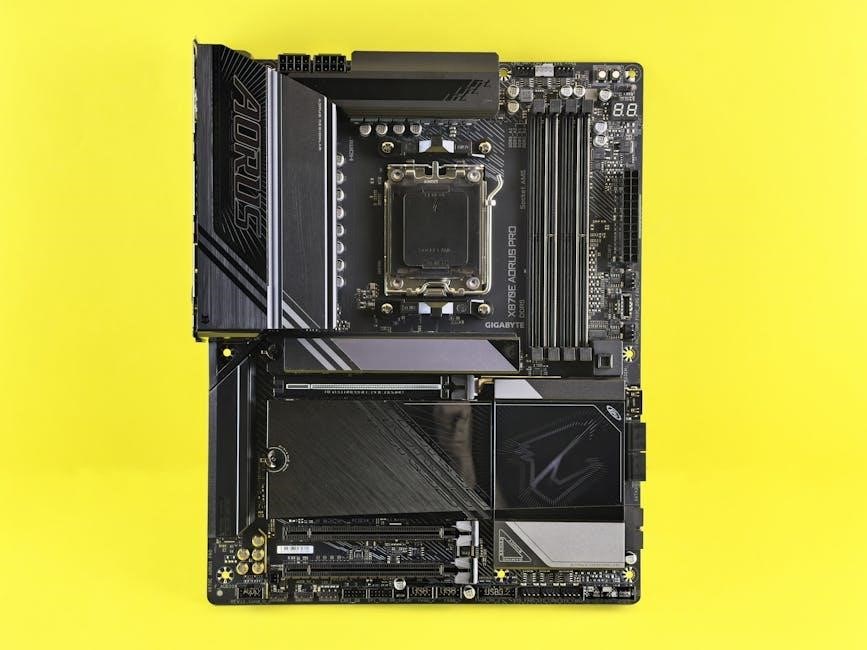
Essential motherboard components – CPU socket, RAM slots, and chipset – dictate system performance. They manage data flow and compatibility for key parts.
CPU Socket & CPU Compatibility
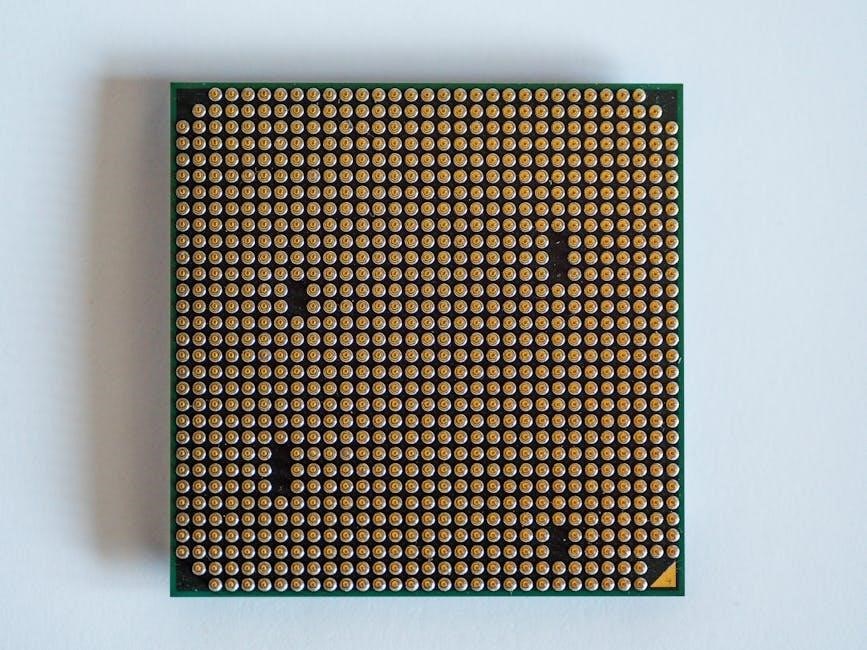
The CPU socket is a crucial motherboard component, physically connecting the CPU to the system. Different CPU generations require specific socket types – LGA, AM4, or TR4, for example. CPU compatibility is paramount; the CPU must match the motherboard’s socket type.
Using an incompatible CPU will prevent the system from booting. Beyond the socket, the motherboard chipset must also support the CPU’s architecture and features. Manufacturers clearly specify CPU compatibility lists for each motherboard model. Carefully checking these lists before purchasing a CPU and motherboard ensures a functional and stable system. Incorrect pairings can lead to hardware damage or system instability.
RAM Slots & Memory Types (DDR4, DDR5)
RAM (Random Access Memory) slots on the motherboard accommodate RAM modules, providing fast access to data for the CPU. Motherboards support specific RAM types, currently primarily DDR4 and the newer DDR5. DDR5 offers significantly increased bandwidth and speeds compared to DDR4, but requires a compatible motherboard and CPU.
The number of RAM slots varies (typically 2 or 4). When selecting RAM, consider the motherboard’s maximum supported speed and capacity. Using mismatched RAM speeds can result in the system running at the speed of the slowest module. Dual-channel or quad-channel configurations, enabled by populating specific slots, enhance performance.
Chipset: Northbridge & Southbridge Functions
The chipset is a crucial motherboard component, traditionally divided into the Northbridge and Southbridge. The Northbridge handled communication between the CPU, RAM, and graphics card – high-speed components. Modern CPUs have integrated memory controllers, diminishing the Northbridge’s role; its functions are now often within the CPU itself.
The Southbridge manages slower peripherals like USB, SATA, and audio. It acts as the intermediary between the CPU/Northbridge and these devices. Modern chipsets often integrate these functions into a single “Platform Controller Hub” (PCH), streamlining the design. The chipset determines the motherboard’s supported features and compatibility.

Expansion Slots
Expansion slots, like PCIe and PCI, allow adding functionality to a computer. They connect components like graphics cards and sound cards.
PCI Express (PCIe) Slots – Versions & Uses
PCI Express (PCIe) slots are the primary expansion interfaces on modern motherboards, succeeding older standards like PCI. They offer significantly higher bandwidth, crucial for demanding components. Different PCIe versions (1.0, 2.0, 3.0, 4.0, and 5.0) provide increasing data transfer rates.
These slots are categorized by ‘lanes’ (x1, x4, x8, x16), indicating the number of data pathways. A PCIe x16 slot is typically used for graphics cards, requiring maximum bandwidth. x4 and x1 slots accommodate other expansion cards like sound cards, network adapters, and storage controllers. The physical size of the slot often corresponds to the number of lanes, though some slots are wired for fewer lanes than their physical size suggests.
Understanding PCIe versions and lane configurations is vital when selecting expansion cards to ensure compatibility and optimal performance. Newer cards are generally backward compatible, but may operate at reduced speeds if paired with an older PCIe version.
PCI Slots (Legacy)
PCI (Peripheral Component Interconnect) slots represent an older standard for expansion cards, largely superseded by PCIe. While still found on some older motherboards, their prevalence is declining due to bandwidth limitations. They were once the primary interface for sound cards, network cards, modems, and other peripherals.
PCI slots offer a lower data transfer rate compared to PCIe, making them unsuitable for modern, high-performance devices like dedicated graphics cards. They typically have a white or black color and a longer length than PCIe x1 slots.
Although less common now, PCI slots can still be useful for adding legacy hardware or specialized cards not available in PCIe format. However, when building a new system, prioritizing PCIe-based expansion is generally recommended for future-proofing and performance.
Storage Interfaces
Motherboards feature SATA ports for SSDs/HDDs and M.2 slots supporting fast NVMe SSDs, crucial for data storage and system responsiveness.
SATA Ports & SSD/HDD Connections
SATA (Serial Advanced Technology Attachment) ports on the motherboard are the traditional interface for connecting storage devices like HDDs (Hard Disk Drives) and SSDs (Solid State Drives). These ports transmit data and power to the drives. Typically, motherboards offer multiple SATA ports, allowing for the connection of several storage devices.
SATA connections utilize a cable to link the motherboard to the drive. While reliable, SATA has bandwidth limitations compared to newer interfaces; SSDs connected via SATA offer significantly faster performance than HDDs, improving boot times and application loading speeds. However, even SATA SSDs are surpassed by NVMe drives utilizing the M.2 interface.
The number of SATA ports available varies depending on the motherboard form factor and target user base. Gamers and professionals often benefit from having more SATA ports for expanded storage capacity.
M.2 Slots & NVMe SSDs
M.2 slots represent a significant advancement in storage technology, offering a smaller form factor and dramatically increased speeds compared to traditional SATA connections. These slots directly connect to the PCIe bus, enabling the use of NVMe (Non-Volatile Memory Express) SSDs.
NVMe SSDs leverage the PCIe interface to achieve sequential read and write speeds several times faster than SATA SSDs. This results in incredibly quick boot times, near-instant application loading, and improved overall system responsiveness. M.2 slots come in varying lengths, supporting different SSD sizes.
Motherboards may feature one or more M.2 slots, sometimes shared with other components; Checking motherboard specifications is crucial to confirm M.2 SSD compatibility and supported PCIe versions for optimal performance.
Connectivity & Ports
Motherboards feature back panel connectors like USB, audio, Ethernet, and video outputs, alongside front panel connectors for power and reset buttons.
Back Panel Connectors (USB, Audio, Ethernet, Video)
The back panel of a motherboard hosts a variety of connectors crucial for interfacing with external devices. USB ports, available in various generations (USB 2.0, 3.0, 3.1, and USB-C), facilitate data transfer and power delivery to peripherals like keyboards, mice, and storage drives. Audio ports, typically color-coded, enable connection to speakers, headphones, and microphones.
An Ethernet port provides a wired network connection, ensuring stable internet access. Video outputs, such as HDMI, DisplayPort, and sometimes DVI, connect the computer to a monitor or display. PS/2 ports, though legacy, may still be present for older keyboards and mice. These connectors collectively allow a computer to interact with the external world, enabling a wide range of functionalities.
Front Panel Connectors (Power, Reset, USB)
Front panel connectors on a motherboard link the case’s buttons and indicators to the system. These include the power button, which initiates system startup, and the reset button, used to restart the computer. LED indicators for power and hard drive activity also connect here, providing visual feedback on system status.
Modern motherboards often include connectors for USB ports located on the case’s front panel, offering convenient access to USB connectivity. These connections require careful placement according to the motherboard’s manual to ensure proper functionality. Correctly connecting these components is vital for a fully operational and user-friendly computer build.
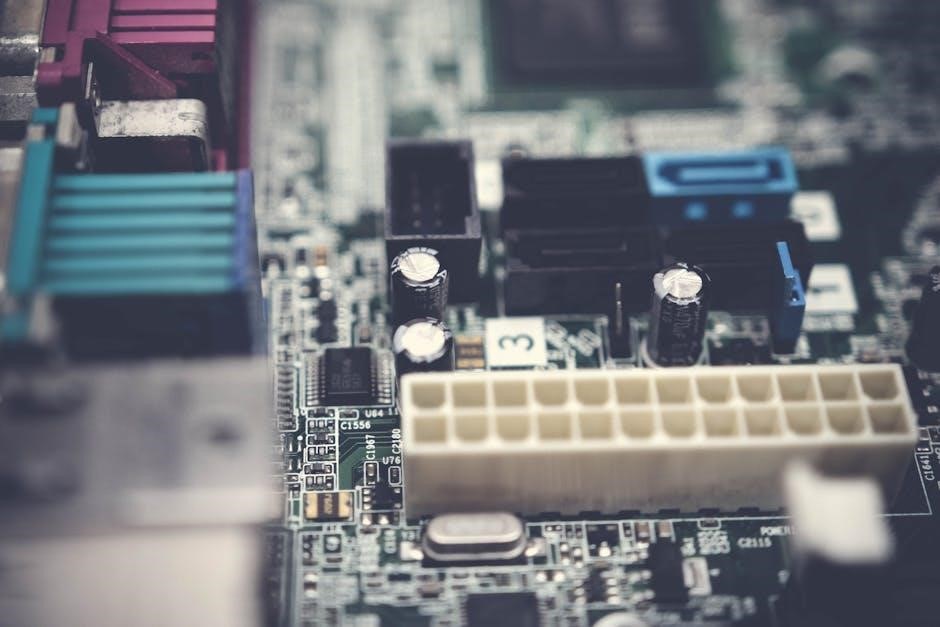
Essential Motherboard Chips
Motherboard chips, like the BIOS/UEFI, manage core functions. Firmware updates stored on these chips control system initialization and hardware interactions.
BIOS/UEFI Chip & Firmware Updates
The BIOS (Basic Input/Output System) or UEFI (Unified Extensible Firmware Interface) chip is a crucial component of the motherboard. This non-volatile memory stores the firmware, which is the first software run when a computer is powered on. It initializes the hardware and loads the operating system.
Firmware updates are essential for maintaining motherboard functionality and compatibility. These updates can improve system stability, enhance security, and add support for newer hardware, like CPUs or RAM. Manufacturers regularly release updates to address bugs and optimize performance.
Updating the BIOS/UEFI can be done through various methods, including using a dedicated utility within the BIOS setup, or through the operating system. It’s a critical process, but requires caution, as a failed update can render the motherboard unusable.